Circling the Plug Hole with AI
Sometimes the hardest part of working with AI isn't the thinking. It's the plumbing. This issue is a warts-and-all account of what happened when I asked AI to sweep receipts and invoices out of my inbox and stage them into Queleon's ledger. The accounting logic took a couple of hours. Attachments it could see but not open, a ledger it could find but not update, and a scheduled job that had quietly never run at all — those took days to work through. There's also a twist I didn't expect to be writing about, involving my own AI advisor telling me something with great confidence that turned out not to be true. If you've ever found yourself two hours into an "almost working" idea and unwilling to let it go, this one is for you.

I sometimes find myself struggling with an internal sunk cost argument when it comes to working with AI. What do I mean by that? In short, circling around a problem for too long without quite getting to the desired conclusion. Something I like to think of as circling the plug hole. This isn't necessarily the fault of AI, or unique to it either. It's the situation where a relatively simple idea appears to almost work, but doesn't quite. You're most of the way there, so it's worth a little effort to get it across the line. AI is helping (isn't it?), so how hard can it be?
What follows below is a simple example of something that appeared at first glance to go well, but in actual fact wasn't quite getting to an optimal outcome. This is a situation where Claude Cowork helped me achieve something rapidly, and confidently convinced me it was working, when really it wasn't.
I realise there are those of you who use Claude Cowork constantly, and those who have never heard of it. For the latter, it's basically an AI assistant which can perform tasks on your local machine, according to the access (to folders), constraints and capabilities (i.e. "skills" and "connectors") you provide it with. You can provide a working *context* which it can draw on over time and expand. I've found Claude Cowork to be incredibly useful, and easy to use, but there are times when it has tried my patience too.
The Objective
My simple desire was to collect receipts and invoices from a known location in my business email, code them against a chart of accounts, stage them for human approval, and then journal them into the general ledger for the business. This included handling both expenses paid for personally and those paid for directly by the business, with the pertinent details either embedded in the email or arriving as an attachment. At this stage the general ledger was just a nicely structured spreadsheet that had been set up with the aid of AI, with a view to easy portability to Xero in the near future.
Claude Cowork also allows me to schedule jobs so that they occur at a set time on certain days. So my intent was to knock this up quickly and just let Claude get on with it. A normal "AI does my admin" approach. One less thing to think about. It got there in the end, but not before a good many laps around the plug hole.
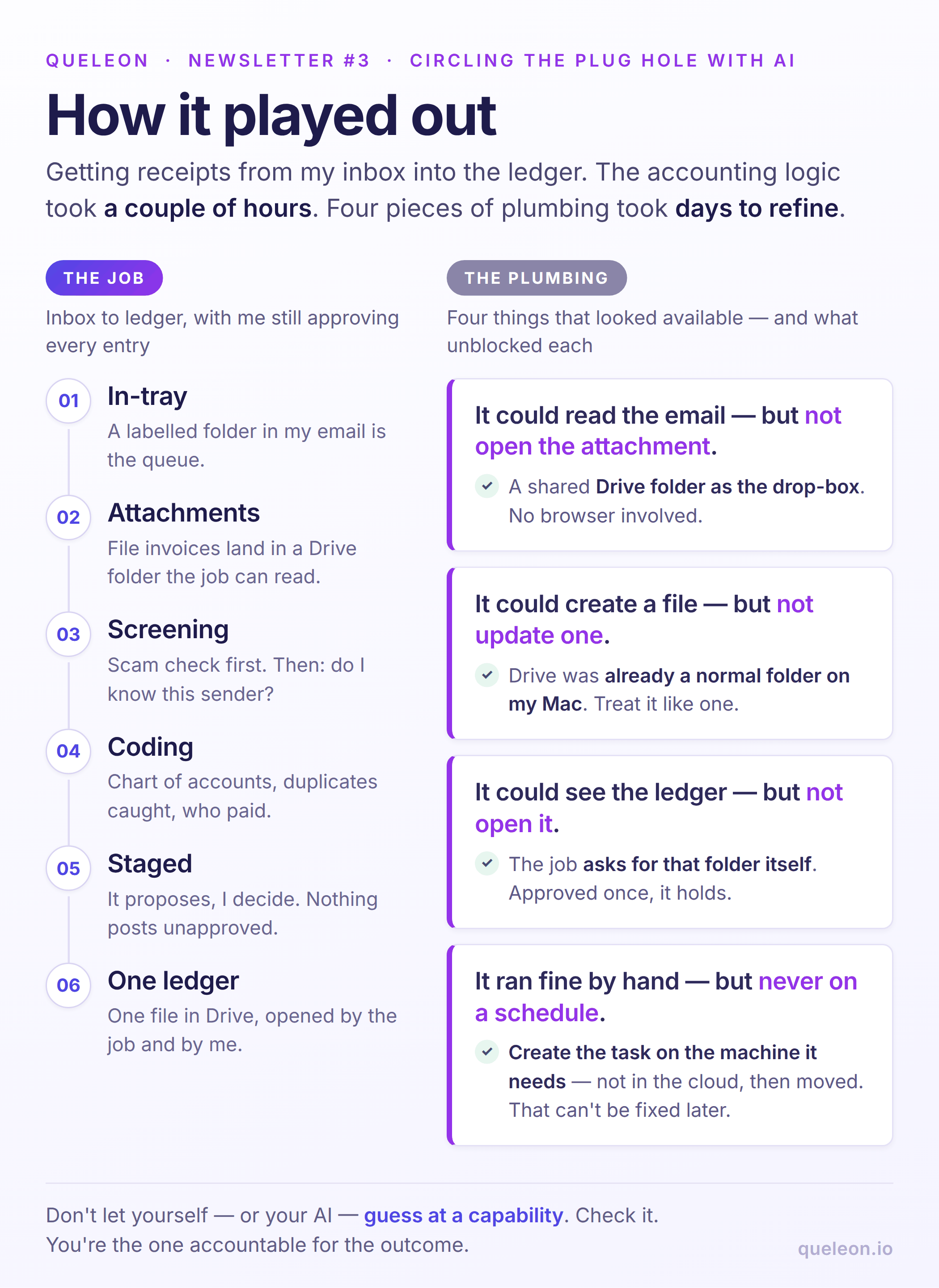
What's interesting is what it took to get there, because almost none of the friction was in the accounting logic. It was in the plumbing (integration).
A Safety Note
A small cautionary note before we start. Providing AI with access to your email is something you undertake at your own risk. However, it can also be extremely powerful when it comes to collating information, and it beats traditional search hands down when you're trying to find something obscure that you can't quite remember the right word for. If you've never set it up before, you do have a degree of control over what you permit Claude Cowork to do.
Personally, I don't give AI unfettered access to construct and send emails, because I've seen a few cases of enthusiasm where AI has misunderstood my instructions and demonstrated initiative by "helpfully" going the extra mile with a next step that I didn't explicitly ask for. Not something you really want for external communications. In my case I've often got a last tweak or change that needs making, so it's best to avoid awkward situations. My advice is to always understand and be comfortable with the risk versus reward balance.
Stage 1: The basic loop
The first version of what I asked Claude to do was fairly simple and tested fine with some minor adjustments. It consisted of:
- A Gmail label ('Expenses/Unprocessed Expenses') used as the intake queue.
- A coding pass against a chart of accounts, staging to a Pending sheet in a ledger workbook rather than posting straight to the books, with a relabel on completion ('Journaled Expenses' or 'Expense Errors').
- A 'Trusted Issuers' list — seeded with some trusted domains, then grown as new legitimate senders showed up — decided who got processed at all, and a separate 'Unknown Issuer' label caught anyone not yet vetted, flagging them for a human (me) to review rather than discarding them.
- Some special rules around handling things I'd paid for personally, treating them as a loan to the business.
- Duplicate detection was added, to cope with the potential for things to be processed twice accidentally, or not at all. Rather than relying on a fuzzy date match, I had AI look at the issuer plus a unique identifier, or the issuer plus an exact date/time and total.
- A scheduled task to execute it and pull it all together.
After some minor tweaks it worked on real data sweeping up ten emails, coding them and staging them in one pass as requested.
Stage 2: The attachment hurdle
It turns out those invoices that came through as attachments were not that straightforward. Apparently, even though Claude has access to my emails, it can't look at or download attachments (sigh). In short, I couldn't easily find a workable path to attachment content through the connected Gmail tooling, just labels, search and message metadata. So what was wired up wasn't going to work as is, and Claude couldn't work around it.
At this stage there were two obvious options:
- A browser-based approach: open the thread, let the attachment render on screen, and read the figures off the image the same way a person would.
- Use a Google Drive folder as an intake point: anything dropped into a To Process folder gets read via the Drive API directly — PDFs and images both work natively there, with no browser needed at all.
The problem with option 1 is that it is slow, and depends on a live browser session. I was able to prove the concept relatively easily with a photographed coffee receipt and two PDF tax invoices, which all got correctly re-processed this way. It also required a Google Chrome extension, which carries its own security concerns, because suddenly AI potentially has access to whatever is open or accessible in your browser. So I decided to shelve that as an automated path.
Hence, option 2 became the preferred path, rather than having the Chrome extension as something a background job should depend on.
Some additional scam and phishing screening got added at the same time, running first and unconditionally on every item, checking for standard red flags such as mismatched sender domains, requests to change bank details and unusual urgency. That is because passing the "I know this sender" check was never meant to mean "this specific email is definitely genuine."
The Drive intake solved reading attachments, but it left a manual step. I had to notice an email had an attachment and move the file over. A 'Has Attachments' label plus an 'Awaiting Attachments' tracking sheet closed that loop cleanly. Flagged emails wait there, and once a matching file shows up in the Drive folder, the system matches it by filename and resolves the original email automatically. Still not 100% automatic, because I still need to download the attachment and place it in the Drive folder, but bearable.
Stage 3: The master-copy wall
For those of you who work with Claude Cowork, you'll probably be aware that it likes to create local copies of things in its own workspace. In the real world, though, files live in different places for a variety of reasons. In my case I wanted to centralise the ledger in the cloud for resilience and future ability to share, and also because Claude is a contributor here, not an owner.
So the plan was to move the working ledger spreadsheet into Google Drive as the real copy. Unfortunately, the Drive connector has no way to update a file's content in place. It can only create a brand new file, or copy an existing one.
Claude's first attempt at working around that was the wrong kind of clever. It decided that the only way to create the file was to send its full content, so its approach was to read the spreadsheet, encode it as text, and send that text as the new file's content. I'll skip the technical details but in practice it isn't scalable. It is too much for Claude's context window, and the new file gets truncated, giving a partial result.

Even in a world where the file was sent in full, the same wasteful round trip would have to repeat in full on every single future edit. Because there's still no partial-update option, you'd be re-paying the full token cost forever, not just once. So I pulled Claude up on this one. While it was technically possible at a small scale, it was not the right approach. Using more tokens to brute-force something is not an actual fix in my book. It was abandoned in favour of a different approach, rather than a bigger version of the same one.
A browser-based upload also had to be ruled out, as Google Drive's own uploader depends on the operating system's native file picker. The risk there is that a stuck dialog could leave no way to see or dismiss it. That left a choice between keeping the ledger local-only, or asking for a one-off manual upload. That's the moment an honest "here's the actual constraint" answer mattered more than a clever-sounding workaround. It means accepting there is a constraint, taking a step back, and finding a different path.
Stage 4: The breakthrough
The unlock came from my own observation, not a new tool. Google Drive was already available as an ordinary mounted folder in Finder (Apple's file browsing application). My thinking was that if it behaves like a normal filesystem, then normal operations like copy and overwrite should just work, sidestepping the API's limitations entirely.
That mount got connected, and it did work, with one wrinkle. A brand-new folder that hadn't been touched yet in the session threw a strange, specific error ("resource deadlock avoided") on both directory listing and a direct file copy. That's not a permissions error or a "file not found". It is a locking conflict, which points at the cloud-sync layer not having finished materialising a freshly created folder as a real local placeholder.
Claude resolved this by writing a small test file into the folder first, which "woke it up". Every operation afterwards including listing, copying, and later opening the workbook directly with a spreadsheet library, worked normally. Sometimes the diagnosis that matters isn't the deep architectural one.
Stage 5: From "backup copy" to "the actual file"
With the mount proven reliable, the natural next question I had was "can't I just work with it directly there?" That reframed the whole design. The original plan was to have a local working copy, mirrored to Drive after edits. That solved the tooling problem but created a new one — the two copies could silently drift, especially if I, the human, wanted to open and edit the same file directly.
What I really wanted was to collapse it into one file, where the ledger lives only in Drive, opened directly by both the automated job and by hand in Excel or Google Sheets. That introduces a concurrency question. What happens if the scheduled job runs while I have the file open for editing? The solution is to check for a lock file before writing, and skip (reporting why) if the file's in use. A small local backup gets taken before every automated write too, purely as an insurance policy, just in case.
That solution turned out to be narrower than I thought. The lock file is a Microsoft Office artefact that Excel creates. Google Sheets doesn't do that. Since for the moment I mostly open the ledger in Sheets, the check was guarding against the one editor I use least. Worse, the job rewrites the whole workbook rather than merging cells, so a Sheets save landing after a run can quietly overwrite whatever it staged. No error, no conflict marker, just missing rows. I've since added guards that involve recording the file's modification time before opening it, re-check immediately before saving, and abandoning the write if anything changed underneath. It is a bit of a blunt instrument, but sufficient for my immediate needs.
Stage 6: The final twist
After a reasonable amount of local verification, I was comfortable with how everything was working. Not long afterwards I purchased a nice new laptop and decided to bring across the Claude workspace and jobs I'd had running on an older machine. After a normal level of tinkering, I had the local manual run on the new machine working fine. The next day I knew there were some invoices and receipts to process, so went to check on things, and found there was an error with the scheduled session: "No device bridge tools are available in this session at all."
My first instinct was that there was clearly something wrong with the setup on the new machine, until I went back to my old machine and found the scheduled task wasn't working there either. All of my successful runs had been initiated manually. I mean, it's just scheduling, right? The conclusion Claude suggested was that a scheduled run simply can't reach your own machine, and I parked the whole idea. Reasonable, given what I'd seen.
In fact it wasn't until I decided to write this newsletter, that I revisited this. Largely because Claude changed its stance when doing a review of an earlier draft. The conclusion I'd reached based on its recommendation was wrong, and finding out why took several further attempts.
The first retest declared everything properly, this task needs my computer, here are the folders it needs and still it came back with no access at all. The reason was buried in the response when the task was created: "not bound, no signed approval." I'd built it through the API and moved it to my machine afterwards, and a binding can't be added to a task after it exists. It was cloud-only from birth. Every run of it behaved identically whether scheduled or triggered by hand, which was the clue I should have caught sooner. The failure was following the task, not the schedule.
When I created it natively in Claude's desktop app it got much further. This time the job could see my filesystem. It listed the Drive folder and found the ledger with the right name and the right size. But it couldn't read a single cell of it, because that particular folder wasn't among the ones the session had been granted. The real shape of the problem only became clear at that point. There were effectively two environments I needed Claude to work in. The one that could see the file couldn't open a spreadsheet. The one that could open a spreadsheet couldn't see the file. They were not broken, but they couldn't reach each other. Claude only allows you to specify a single folder when setting up scheduled jobs on the desktop application. The fix was simply to let the job ask for access to the ledger's folder itself, at the start of the run, and approve it once for all future runs. That mounts the folder into the environment holding the spreadsheet library, and the two halves finally meet. After all that, I'm pleased to say I've watched it work twice — once with me there to approve the request, and once entirely unattended.
Wrap Up
Somehow a small job I intended to take an hour or so took days to put to bed. And that's a real danger in commercial projects with tight time frames. In this case things landed roughly right in the end, and the crux of the issue was just configuration. However it is worth noting that at no point in that sequence did Claude have sufficient evidence to be as definitive as it was. It was reasoning from documentation about what ought to be possible, which is precisely the failure this entire newsletter is about.
In summary:
- Don't let yourself or your AI guess at a capability — check it. You are responsible.
- When a tool genuinely can't do something, get AI to say so plainly rather than forcing a fragile workaround.
- Where a real constraint shows up, look for a different approach rather than pushing harder on the same door.
The accounting logic — trust lists, duplicate detection, funding-source rules — was the easy part. The actual problem was integration and getting Claude to interact with a sensibly located spreadsheet that stays in sync with human changes.
As mentioned earlier Claude suggested a rewrite to my ending, and it corrected its own notes. It edited the underlying instructions file to strip out what it called an overclaim. Then the first test ran and it reversed itself completely. Then it reversed again. Considerably more laps around the plug hole than I'd wanted or expected. The difference this time is that something eventually went down it — thankfully.
Thanks for reading — I'd love to hear your thoughts, so reply any time at feedback@queleon.io, and if you haven't already, please subscribe here to receive future issues directly in your inbox.
© Queleon Limited 2026. All rights reserved.
Where does your estate sit?
Eight dimensions, five minutes, instant scorecard.